How to Add Favorites in IPTV Smarters Pro (2026 Easy Guide)
Published March 2026 · 15 min read

IPTV Smarters Pro is one of the most popular IPTV players available today. It lets you stream live TV channels, movies, and series using an M3U playlist or Xtream Codes login. With hundreds, sometimes thousands, of channels available, finding your go-to channels every time can be frustrating.
That is exactly where the Favorites feature comes in. In this guide, you will learn exactly how to add favorite channels in IPTV Smarters Pro, how to access and manage your favorites list, and how to fix common problems on Fire TV Stick, Android TV, Smart TV, and more.
Quick Answer: How to Add Favorites in IPTV Smarters Pro
If you just need the fast answer, here it is:
- Open IPTV Smarters Pro on your device.
- Tap Live TV from the main dashboard.
- Browse to the channel you want to save.
- Press and hold OK (remote) or long-press the channel name (touchscreen).
- Select Add to Favourite from the pop-up menu.
That is it. Your channel is now saved to your Favorites list. Keep reading for the full step-by-step tutorial, device-specific guides, and troubleshooting tips.
What Is the Favorites Feature in IPTV Smarters Pro?
The Favorites feature in IPTV Smarters Pro allows you to build a personal shortlist of your most-watched channels. Instead of scrolling through hundreds of channels every session, you can jump straight to your saved list with one tap.

Key benefits of using Favorites:
- Save time by skipping the full channel list.
- Organize channels from different categories in one place.
- Access your top channels instantly on any device.
- Works across Live TV, Movies, and Series sections.
Related: Can I Watch IPTV on My iPhone?
How to Add Favorite Channels in IPTV Smarters Pro — Step-by-Step
Follow these steps carefully to add any channel to your Favorites list.
Step 1 — Open IPTV Smarters Pro
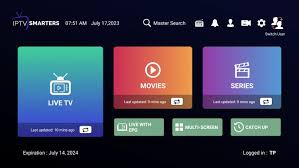
Launch IPTV Smarters Pro on your device. Make sure you are logged in with your IPTV playlist or Xtream Codes credentials. You should see the main dashboard with options including Live TV, Movies, and Series.
Step 2 — Go to Live TV
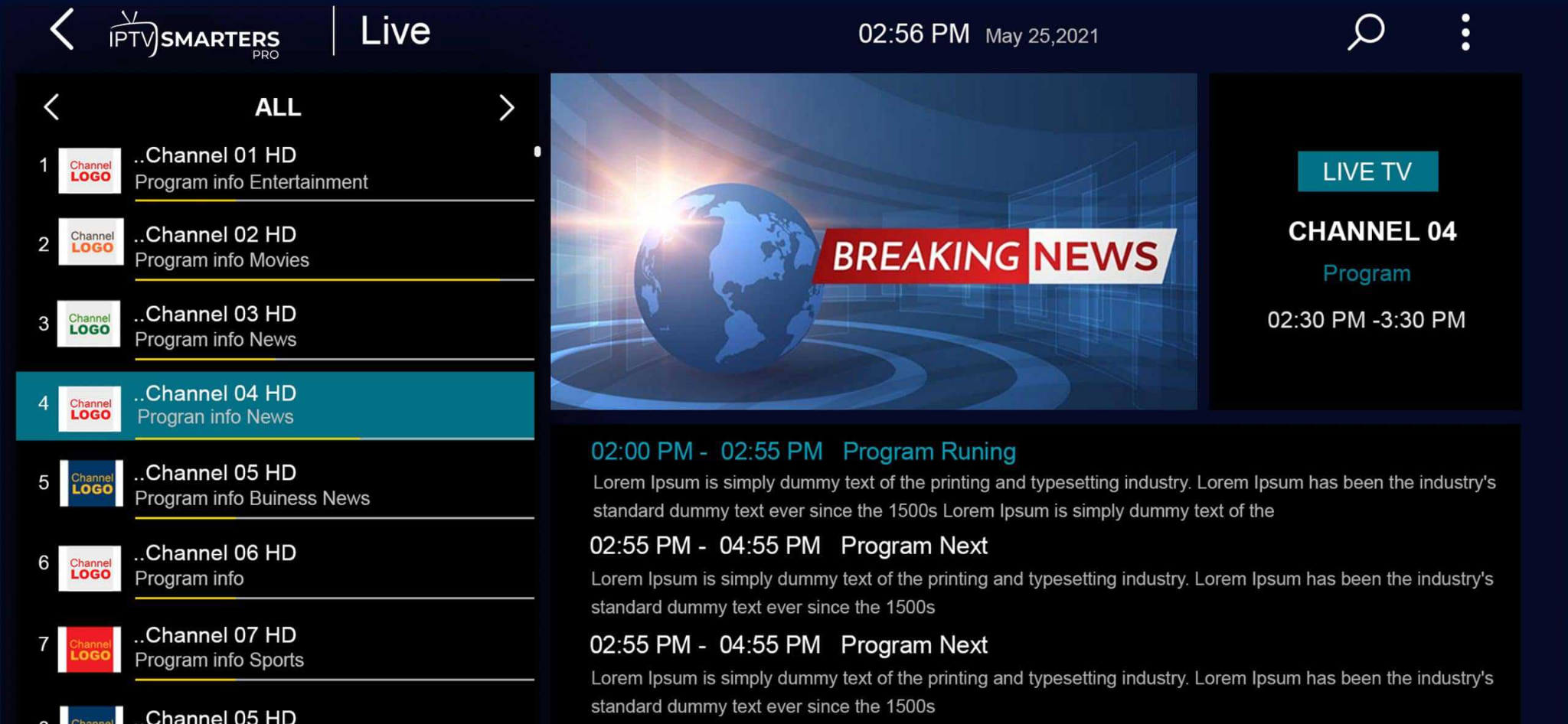
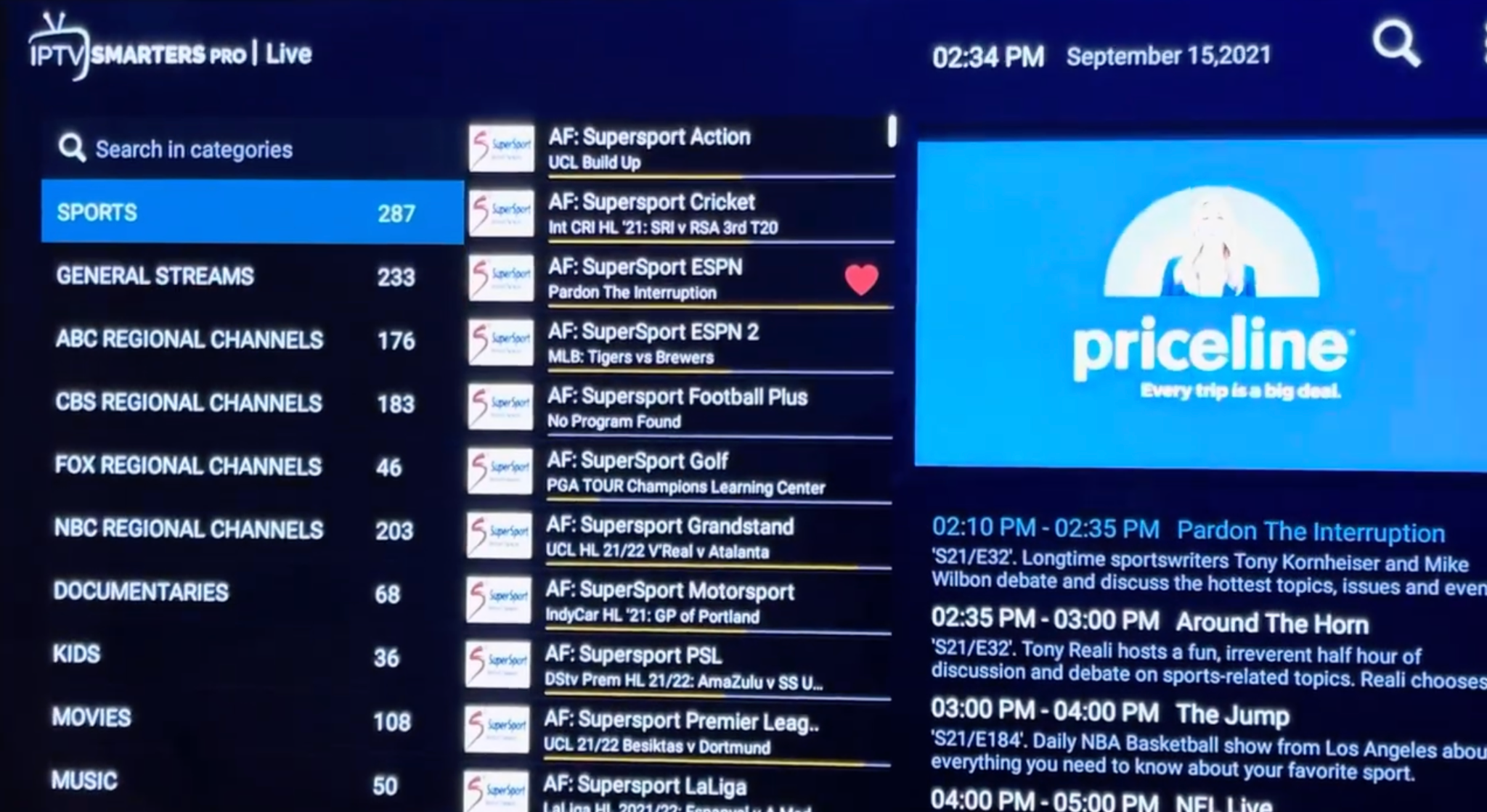
From the main dashboard, tap or click on Live TV. This will load your full channel list, organized by categories such as Sports, News, Entertainment, and more.
Step 3 — Browse to Your Channel
Use the arrow keys on your remote (or swipe on a touchscreen) to browse through the channel categories and find the channel you want to add to Favorites. You can also use the search function to find a channel quickly.
Step 4 — Long-Press or Hold OK
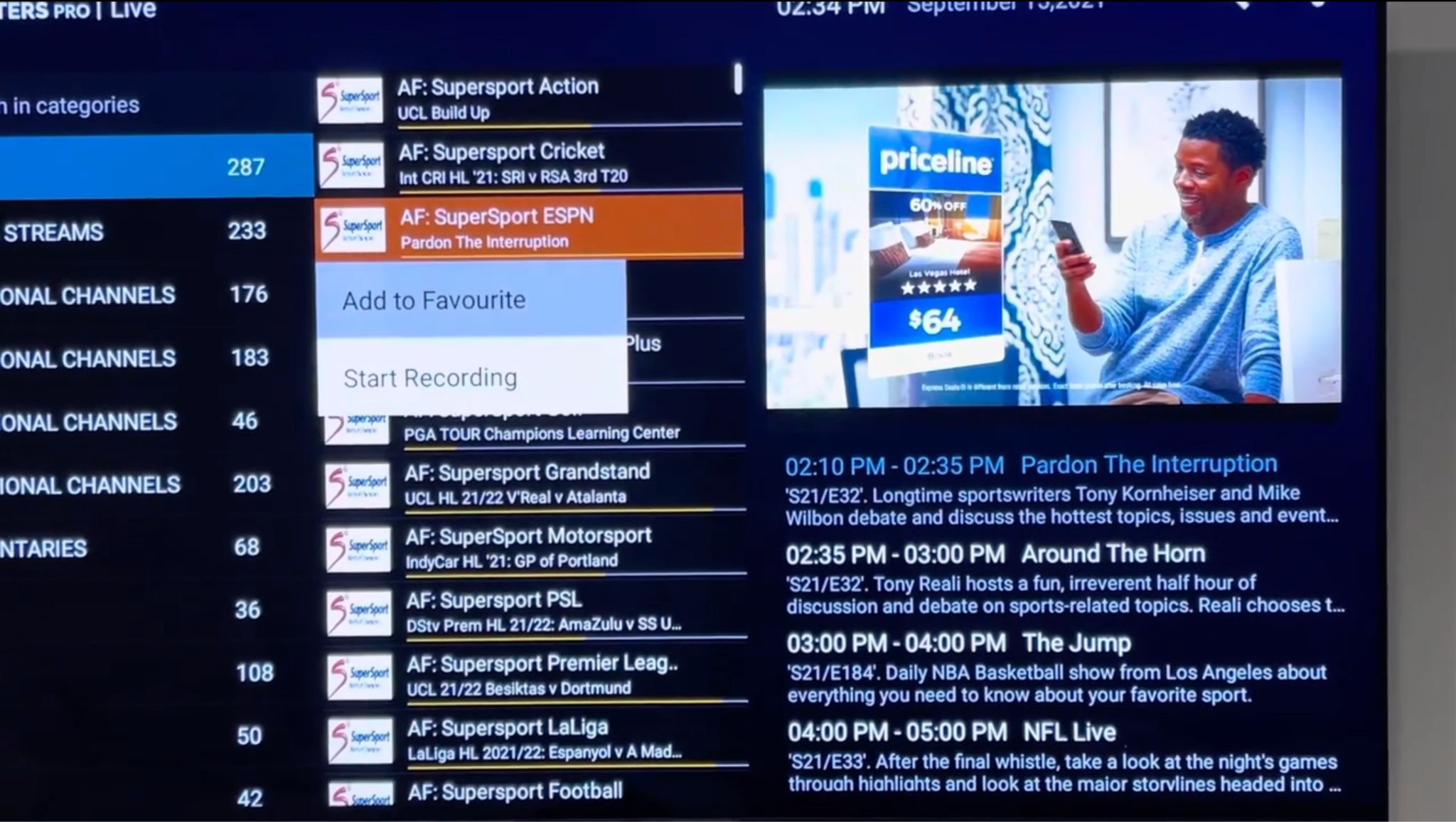
Once you have highlighted the channel:
- On Firestick or Android TV remote: press and hold the OK button for 1–2 seconds.
- On a touchscreen device: long-press the channel name.
- On a Smart TV remote: press and hold the Select or Enter button.
Step 5 — Select Add to Favourite
In the pop-up menu, select Add to Favourite. The channel will immediately be saved to your Favorites list. You will usually see a small star icon or confirmation message indicating the channel has been added.
Quick Reference Table
| Step | Action |
|---|---|
| Step 1 | Open IPTV Smarters Pro and log in |
| Step 2 | Tap Live TV from the main dashboard |
| Step 3 | Browse to your desired channel |
| Step 4 | Press and hold OK (remote) or long-press (touchscreen) |
| Step 5 | Select Add to Favourite from the pop-up menu |
How to Access Your Favorite Channels
Once you have added channels to your Favorites list, here is how to access them:
- Open IPTV Smarters Pro.
- Go to Live TV.
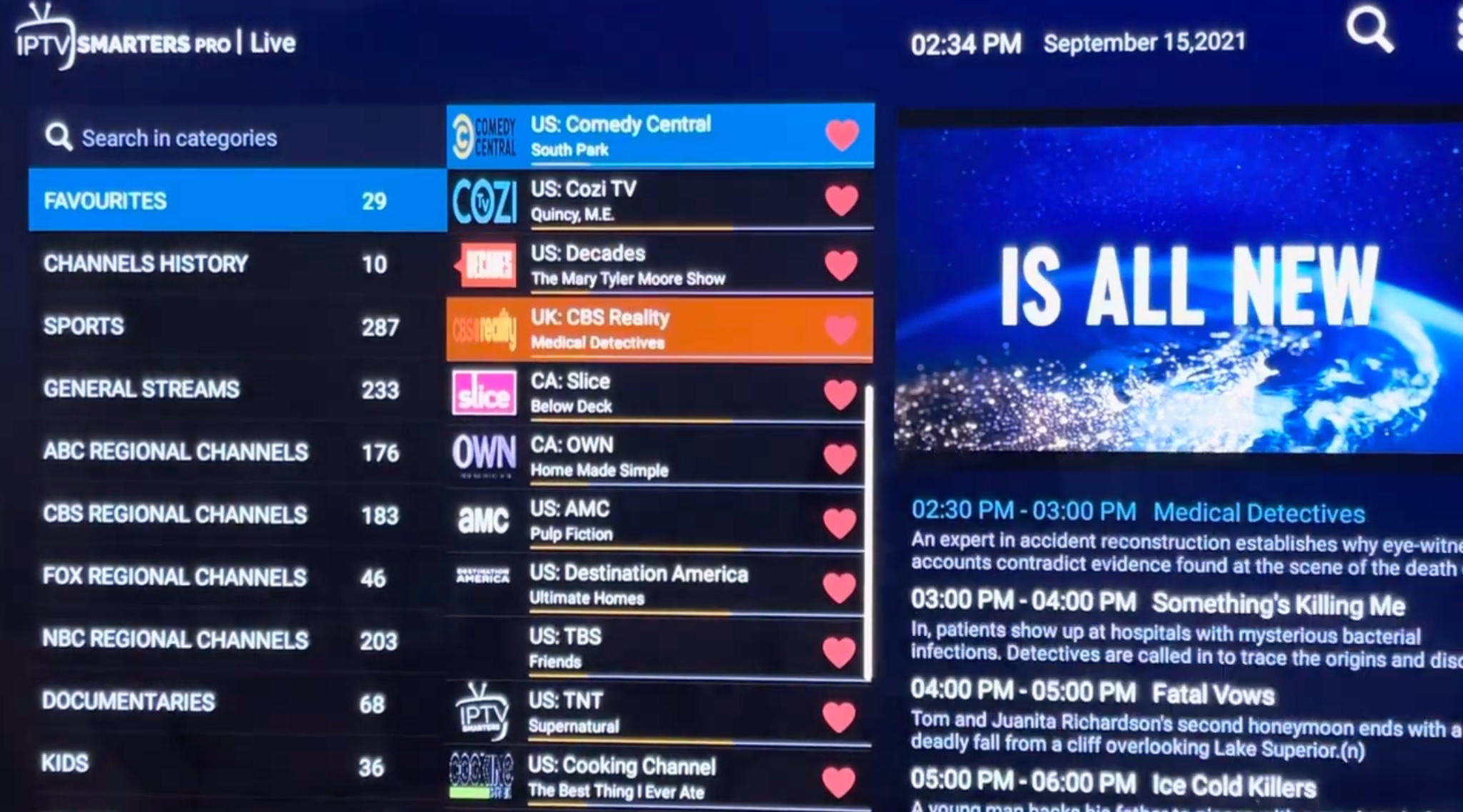
- Look for the Favourites or My Favourites category at the top of your channel category list.
- Tap it to see all your saved channels in one place.
Tip: Your Favorites list is saved locally on your device. If you reinstall the app or switch to a new device, you may need to re-add your favorites.
How to Remove Channels From Favorites
Removing a channel from your Favorites list is just as easy as adding one.
- Open IPTV Smarters Pro and go to Live TV.
- Navigate to your Favourites category.
- Highlight the channel you want to remove.
- Press and hold OK (or long-press on touchscreen).
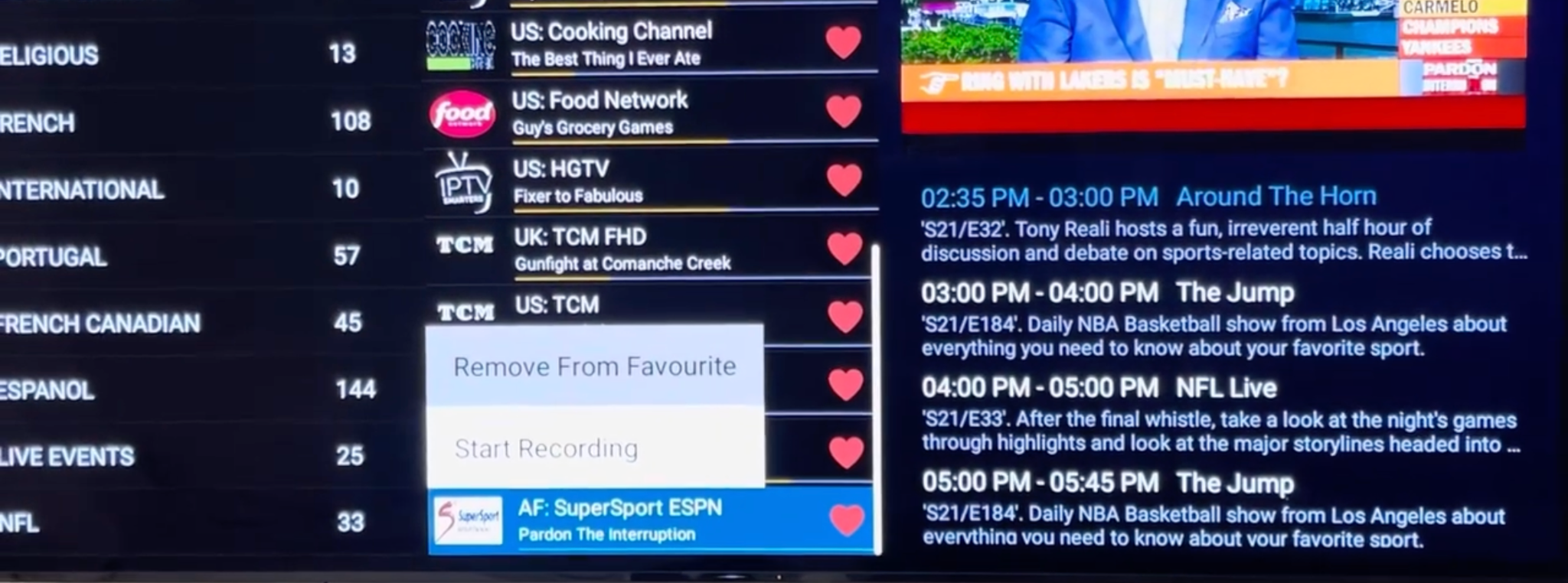
- Select Remove from Favourite from the pop-up menu.
The channel will be removed from your Favorites list immediately. It will still be available in its original category.
How to Add Favorites on Firestick
Adding favorites on Firestick with IPTV Smarters Pro follows the same process, with a few Firestick-specific tips:
- Use the Amazon Firestick remote’s circular OK/Select button, press and hold for about 2 seconds.
- If the pop-up menu does not appear, make sure the channel is fully highlighted (yellow border) before holding OK.
- You can also use the Alexa Voice Remote: highlight the channel first, then hold OK.
Common Firestick issue: If the long-press does not respond, try pressing OK once first to select the channel, then hold OK on the second press.
How to Add Favorites on Android TV
On Android TV devices (including NVIDIA Shield, Mi Box, and Chromecast with Google TV):
- Navigate to the channel using your Android TV remote’s D-pad.
- Press and hold the center D-pad button (Select) for 1–2 seconds.
- The Add to Favourite option will appear in the context menu.
Android TV tip: If you are using a Bluetooth game controller, the A button long-press typically triggers the same context menu.
How to Add Favorites on Smart TV
For Samsung, LG, Hisense, and other Smart TVs running IPTV Smarters Pro:
- Use the Smart TV’s directional remote to highlight your channel.
- Press and hold the Enter or OK button on the Smart TV remote.
- Select Add to Favourite from the on-screen menu.
Note: On some Samsung Smart TVs, the button may be labeled as the center D-pad button. On LG Magic Remote, long-pressing the scroll wheel acts as a hold/OK.
How to Organize Your Favorite Channels
IPTV Smarters Pro keeps your Favorites in the order you added them. Here are some tips to keep your list organized:
- Add channels in priority order, most-watched first.
- Regularly review your Favorites list and remove channels you no longer watch.
- Use the search bar in the Favourites category to quickly find a saved channel.
- If you have multiple playlists, note that Favorites are saved per playlist — you may need to add favorites separately for each playlist.
Common Problems and Fixes
Here are the most common Favorites-related issues in IPTV Smarters Pro and how to fix them.
Favorites Not Saving
If your favorites disappear every time you restart the app:
- Make sure the app has storage permissions. Go to your device’s Settings > Apps > IPTV Smarters Pro > Permissions and enable Storage.
- Update IPTV Smarters Pro to the latest version.
- Try clearing the app cache: Settings > Apps > IPTV Smarters Pro > Clear Cache, then re-add your favorites.
Favorites Disappeared After Update
After an app update, your favorites list may reset. Unfortunately, IPTV Smarters Pro does not currently support cloud sync for favorites. To prevent this in the future:
- Note down your favorite channels before updating the app.
- Re-add them after the update is complete.
Long-Press Not Working
If holding OK or long-pressing does not trigger the context menu:
- Make sure the channel is highlighted (not just in focus).
- Try a longer hold — 2–3 seconds instead of 1.
- Restart the app and try again.
- Check if your remote’s OK button is functioning correctly.
Favorites Not Syncing Across Devices
IPTV Smarters Pro favorites are stored locally and do not sync across devices. If you switch devices, you will need to re-add your favorites manually on the new device.
Best Tips for Faster Channel Access in IPTV Smarters Pro
Beyond Favorites, here are extra tips to make your IPTV experience even faster:
- Use the Search feature to find channels instantly instead of browsing categories.
- Set up your EPG (Electronic Program Guide) so you can see what is on without opening each channel.
- If you use multiple playlists, label them clearly in the app for easier navigation.
- Use the Continue Watching section for quick access to recently watched content.
- Enable the Remember Last Channel option in settings if your version supports it.
Conclusion
Adding favorites in IPTV Smarters Pro is a simple but powerful feature that saves you time every day. Whether you are on a Firestick, Android TV, Smart TV, or mobile device, the process is the same: navigate to your channel, long-press OK, and select Add to Favourite.
With your Favorites list set up, you can skip the endless channel scrolling and jump straight to the content you love. If you run into any issues, the troubleshooting steps above will help you get your favorites working again quickly.
Frequently Asked Questions (FAQ)
How do I add channels to favorites in IPTV Smarters?
Go to Live TV, highlight the channel, press and hold OK, then select Add to Favourite from the pop-up menu.
Where is the favorites list in IPTV Smarters?
Your favorites are saved in a dedicated Favourites category at the top of your channel category list inside Live TV.
Why can’t I add favorites in IPTV Smarters Pro?
This is usually a permissions issue. Make sure the app has storage access in your device settings, and that you are running the latest version of the app.
Can IPTV Smarters save favorite channels permanently?
Yes, favorites are saved locally on your device. However, they may reset if you clear app data, reinstall the app, or update to a new version.
Do favorites sync across devices in IPTV Smarters?
No. IPTV Smarters Pro stores favorites locally. You will need to re-add your favorites if you switch to a different device.
How do I remove a channel from favorites in IPTV Smarters?
Navigate to your Favourites list, highlight the channel, press and hold OK, then select Remove from Favourite.
How to add favorite channels IPTV Smarters Firestick?
On Firestick, highlight the channel and press and hold the OK button on your remote for 1–2 seconds, then choose Add to Favourite.