Can I Watch IPTV on My iPhone? Top 7 IPTV Apps for iOS
Published February 2026 · 20 min read
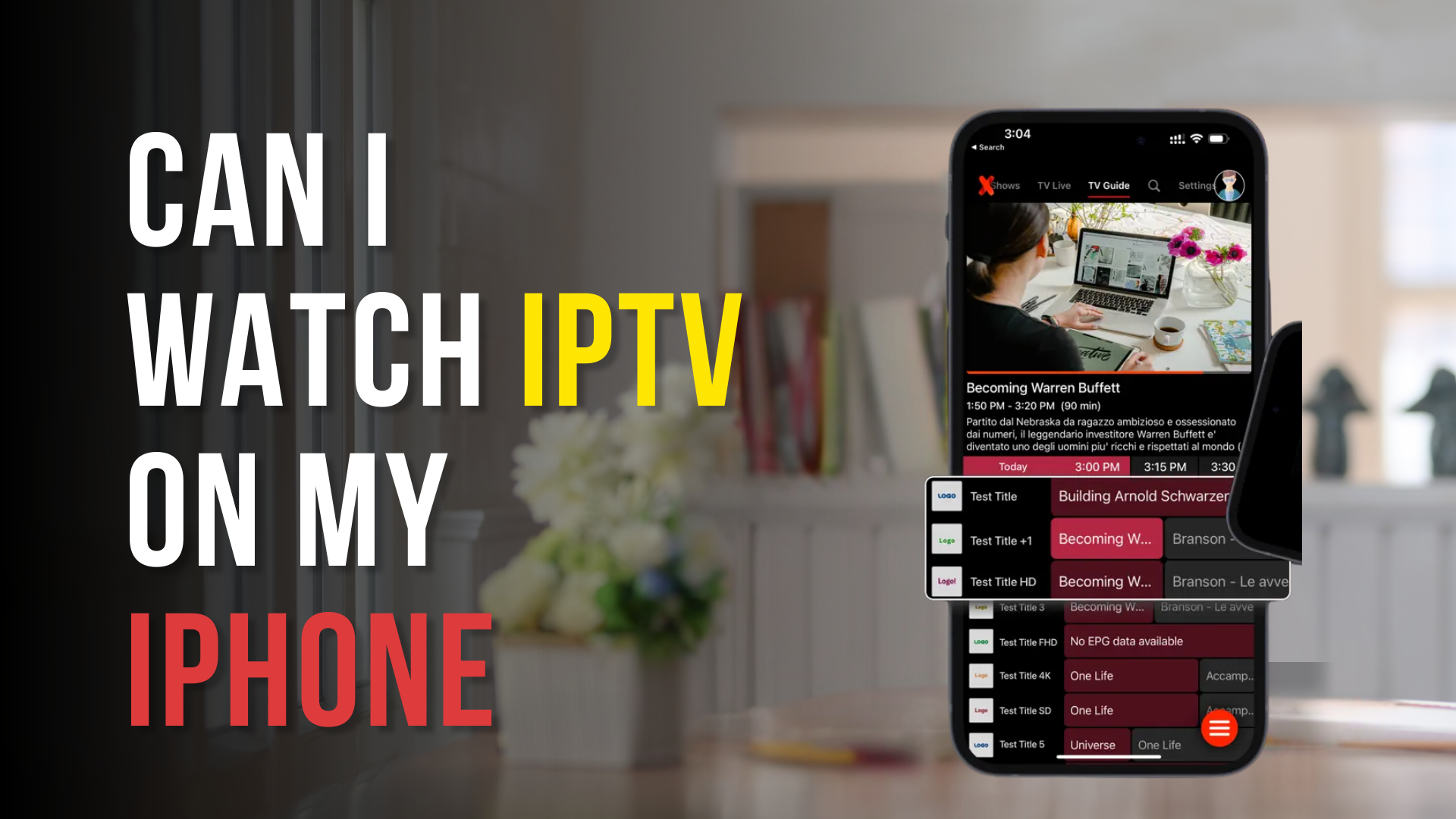
Can I watch IPTV on my iPhone, since iOS supports HLS streaming, and App Store apps like IPTVX can play M3U, M3U8, and Xtream Codes streams?
If you’ve ever wondered whether your iPhone can handle IPTV streaming, you’re not alone.
Maybe you’re tired of watching live TV only on your Smart TV. Maybe you want your favorite channels in your pocket — on the bus, in bed, or while pretending to “work.”
So yes, can I watch IPTV on my iPhone? Absolutely.
Your iPhone supports modern IPTV streaming formats like HLS, M3U playlists, and Xtream Codes login systems. With the right IPTV players from the App Store, you can stream live TV, movies, and series directly on your iOS device.
But here’s the thing.
You don’t download “IPTV” itself from the App Store. You download an IPTV player app — like IPTV Smarters, IPTVX, or Cloud Stream IPTV Player — and then connect it to your IPTV service using your provider’s playlist or login details.
Simple.
If you can copy and paste a link, you can set this up.
In this guide, I’ll show you exactly how IPTV on iPhone works, which apps are the best, how to avoid common bugs and streaming issues, and what you need to know before you start.
By the end, you’ll know whether your iPhone is actually the perfect IPTV streaming device for you — or just a backup screen for late-night binge sessions.
My 5 Top IPTV Players for iPhone iOS 2026
If you’re wondering can I watch IPTV on my iPhone, the answer is yes — and choosing the right IPTV player makes all the difference.
How IPTV Works on an iPhone
So how does IPTV on iPhone actually work?
Is it some complicated developer-level setup?
Not at all.
Think of IPTV like YouTube or Netflix — but instead of using their app with their content, you use an IPTV player and connect it to your own IPTV service.
Your iPhone already supports modern streaming formats like HLS (HTTP Live Streaming). That means iOS devices are technically ready for IPTV streaming right out of the box.
What you need is one of the many IPTV players available on the App Store.
These apps don’t give you channels.
They act like a media player.
You install the app, then load your M3U playlist URL or log in using Xtream Codes API details (username, password, server URL). Once you enter that information, the IPTV app pulls your live TV channels, video on demand (VOD), and series directly into the interface.
It’s basically a bridge.
Your IPTV provider supplies the content. The IPTV player displays it. Your iPhone streams it.
Simple chain.
Now here’s where people get confused.
They think IPTV is “illegal software” hidden somewhere outside the App Store. But the apps themselves — IPTV Smarters, IPTVX, Cloud Stream IPTV Player — are regular iOS applications. They receive updates, bug fixes, and performance improvements just like any other streaming app.
If you can install Instagram, you can install an IPTV app.
And if you can log into a website, you can connect your IPTV service.
The only real requirements?
- A stable WiFi or mobile data connection
- An IPTV subscription
- An updated iOS version (most apps require iOS 13 or higher)
That’s it.
No jailbreaking. No strange downloads. No secret hacking tricks.
Just your iPhone… and the right setup.
What You Need Before Watching IPTV on Your iPhone
Before you start streaming live TV on your iPhone, pause for a second.
Let’s make sure you actually have the basics covered.
Because yes, IPTV on iPhone is easy… but only if you set it up the right way.
First, you need an IPTV subscription.
The IPTV players you download from the App Store, like IPTV Smarters or IPTVX, don’t come with channels built in. They’re just media players. Think of them like a TV screen without a cable connected.
No connection, no content.
Your IPTV provider should send you one of the following:
- An M3U playlist URL, or
- Xtream Codes API login details (username, password, and server URL)
Without those credentials, your IPTV app won’t load any live TV, movies, or series.
Some popular IPTV services people often mention include:
Check the list of the Best IPTV Service Providers in 2026
Second, you need solid internet.
IPTV streaming on iPhone works best with strong WiFi or fast 4G/5G mobile data. If your connection drops every few minutes, your stream will buffer.
And buffering during a big sports game? That’s heartbreak.
Now, here’s something many people forget: your iOS version.
Most IPTV players require iOS 13 or later. Some modern apps need iOS 16+. Updating your iPhone improves compatibility, fixes bugs, and keeps your streaming experience smooth.
Old software can cause random crashes or playlist errors.
You may also want to use a VPN.
A VPN can protect your data, reduce ISP throttling, and sometimes improve streaming stability. It’s not required, but many IPTV iPhone users use one for extra privacy and performance.
IPTV apps themselves are lightweight. But if you plan to download video on demand, use catch-up TV, or save content offline, you’ll need some free storage available.
Just your iPhone, a trusted IPTV player from the App Store, your M3U or Xtream Codes login, stable internet, and enough space.
Top 7 IPTV Apps for iPhone (Tested & Explained)
Choosing the right IPTV app for iPhone matters more than you think.
Some apps look great but crash. Some are stable but confusing. Some support M3U playlists but not Xtream Codes login.
Below are the best IPTV players for iOS that actually work.
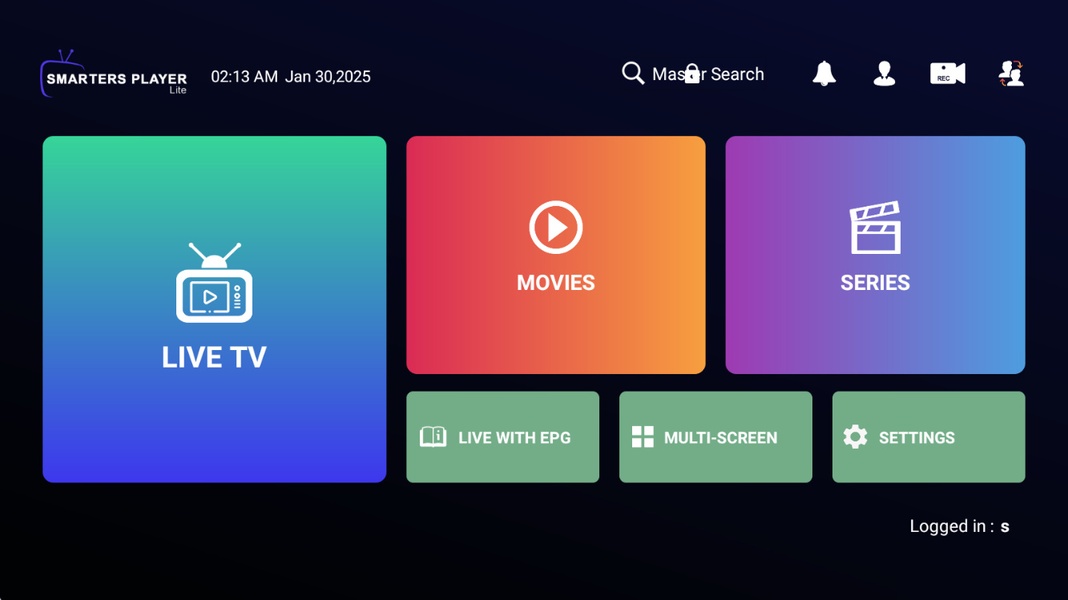
1. IPTV Smarters Lite
If you’ve searched anything about IPTV iPhone streaming, you’ve probably seen this name already.
IPTV Smarters is one of the most popular IPTV players on the App Store. It supports live TV, movies, series, catch-up TV, and even multi-screen streaming.
It’s beginner-friendly but still powerful.
Features
- M3U playlist support
- Xtream Codes API login
- Live TV + VOD + Series
- Built-in video player
- Parental controls
- Regular app updates & bug fixes
Pros
- Easy setup
- Clean interface
- Works with most IPTV services
Cons
- Some features locked behind premium
- Interface can feel basic
Paid or Free: Free version available. Premium upgrade optional.
2. IPTVX (Designed for Apple Users)
If you like Apple-style design, you’ll love IPTVX.
This IPTV iOS app feels like it was built specifically for iPhone and iPad users. It’s smooth, modern, and optimized for HLS streaming.
It integrates beautifully with Apple’s ecosystem.
Features
- M3U & Xtream Codes support
- iCloud sync
- EPG (TV Guide) integration
- AirPlay & Chromecast support
- Advanced player customization
Pros
- Premium Apple-style interface
- Very stable performance
- Excellent streaming quality
Cons
- Paid subscription required for full features
- Slight learning curve
Paid or Free: Free trial. Paid subscription required.
3. Cloud Stream IPTV Player
Cloud Stream is another reliable IPTV streaming app for iPhone.
It supports external playlists and offers strong playback performance. Great for users who want a simple but stable M3U player on iOS.
Features
- M3U playlist support
- Chromecast integration
- Parental control system
- Built-in HLS player
- Playlist auto-refresh
Pros
- Simple layout
- Stable live TV streaming
- Good parental options
Cons
- Limited advanced customization
- Ads in free version
Paid or Free: Free version available. Paid removes ads.
4. My IPTV Player
If you want something straightforward, this one does the job.
My IPTV Player focuses on simplicity. No extra features. No unnecessary complexity.
Just load your IPTV playlist and stream.
Features
- M3U playlist support
- Basic EPG support
- Simple interface
- Lightweight app size
Pros
- Easy to use
- Good for beginners
- Low storage usage
Cons
- Basic design
- Fewer customization options
Paid or Free: Mostly free. May include in-app purchases.
5. Flex IPTV
Flex IPTV is a more advanced IPTV player for iPhone users who want stability and customization.
It works well for live TV streaming and supports different playlist formats.
Features
- M3U URL support
- External player integration
- Live & non-live content
- Advanced playback controls
Pros
- Strong streaming performance
- Reliable channel loading
- Good compatibility
Cons
- Paid activation required
- Interface not very modern
Paid or Free: Free trial. Paid activation required.
6. GSE Smart IPTV
GSE Smart IPTV has been around for years.
It supports multiple playlist formats and advanced streaming protocols. If you like tweaking settings, this app gives you flexibility.
Features
- M3U & JSON support
- Xtream Codes login
- HLS streaming
- Subtitles support
- Advanced playback settings
Pros
- Highly customizable
- Supports many formats
- Good for advanced users
Cons
- Interface feels outdated
- Can overwhelm beginners
Paid or Free: Free version with ads. Premium version available.
7. iPlayTV (Alternative Option)
iPlayTV is another IPTV iPhone app that focuses on clean streaming and playlist organization.
It works well for users who want stable live TV playback without extra distractions.
Features
- M3U support
- Fast playlist loading
- Smooth HLS playback
- EPG support
Pros
- Fast channel switching
- Lightweight
- Good performance on newer iPhones
Cons
- Limited advanced tools
- Smaller user base
Paid or Free: Paid app.
The app only plays what your IPTV service provides. So your streaming quality, channel availability, and buffering issues often depend more on your IPTV provider than the iPhone app itself.
Step-by-Step: How to Set Up IPTV on Your iPhone
Alright.
Now let’s actually set this up.
Because knowing that you can watch IPTV on your iPhone is one thing. Getting it running smoothly is another.
Don’t worry, this isn’t technical. If you can install TikTok, you can handle IPTV configuration on iOS.
Step 1: Download an IPTV Player from the App Store
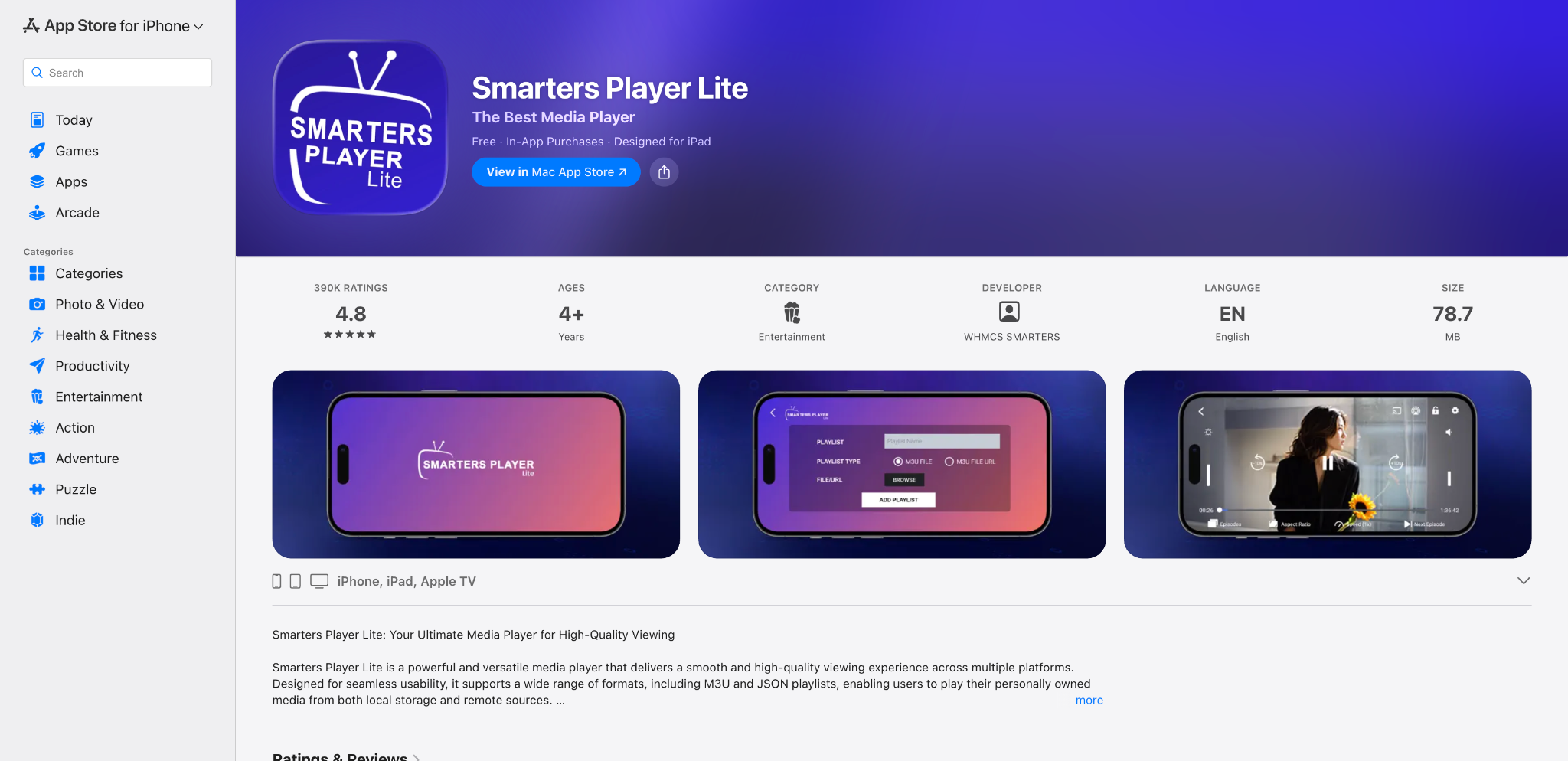
Open the App Store on your iPhone.
Search for a trusted IPTV player like IPTV Smarters Lite, IPTVX, or Cloud Stream IPTV Player.
Tap download. Install it. Open it.
That’s your IPTV streaming app ready to go.
Step 2: Choose Your Login Method (M3U or Xtream Codes)
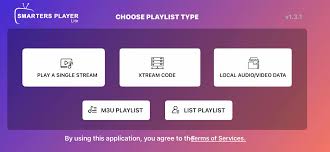
When you first open the app, it will usually ask how you want to connect.
You’ll typically see two main options:
- Add M3U Playlist
- Login with Xtream Codes API
If your IPTV provider gave you a long URL link, that’s your M3U playlist.
If they gave you a username, password, and server URL, that’s Xtream Codes login.
Both work. Xtream Codes is often easier because it automatically loads your channel list and EPG (TV Guide).
Step 3: Enter Your IPTV Details Carefully
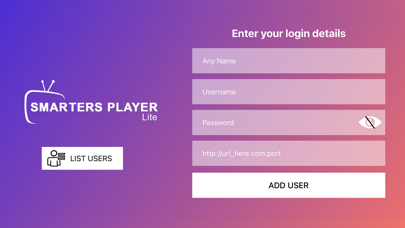
Now copy and paste your credentials.
Double-check everything.
One wrong letter in the server URL and your IPTV won’t load.
Most “IPTV not working on iPhone” problems happen because of typing mistakes, not app issues.
Step 4: Let the App Load Channels & EPG
After login, the app will start downloading your channel list and EPG guide data.
This can take a minute. Sometimes two.
Once finished, you’ll see:
- Live TV channels
- Movies (VOD)
- Series categories
- TV guide schedule
At this point, your IPTV on iPhone is officially working.
Step 5: Optimize Your IPTV Streaming Settings
Before you start watching, take 30 seconds to check your settings.
Inside most IPTV apps, you can:
- Adjust video playback quality
- Enable hardware decoding
- Change buffering settings
- Update playlist automatically
- Fix audio sync issues
These small adjustments can improve IPTV streaming quality on iOS dramatically.
If channels aren’t loading, try refreshing the playlist or restarting the app. Simple bug fixes often solve everything.
Once you’ve done it once, setting up IPTV on iPhone takes less than five minutes.
Common IPTV Problems on iPhone (And How to Fix Them)
Let’s be honest.
Even when everything is set up correctly, IPTV on iPhone isn’t always perfect.
Sometimes channels won’t load. Sometimes, live TV buffers. Sometimes the IPTV app for iOS just decides to close itself for no reason.
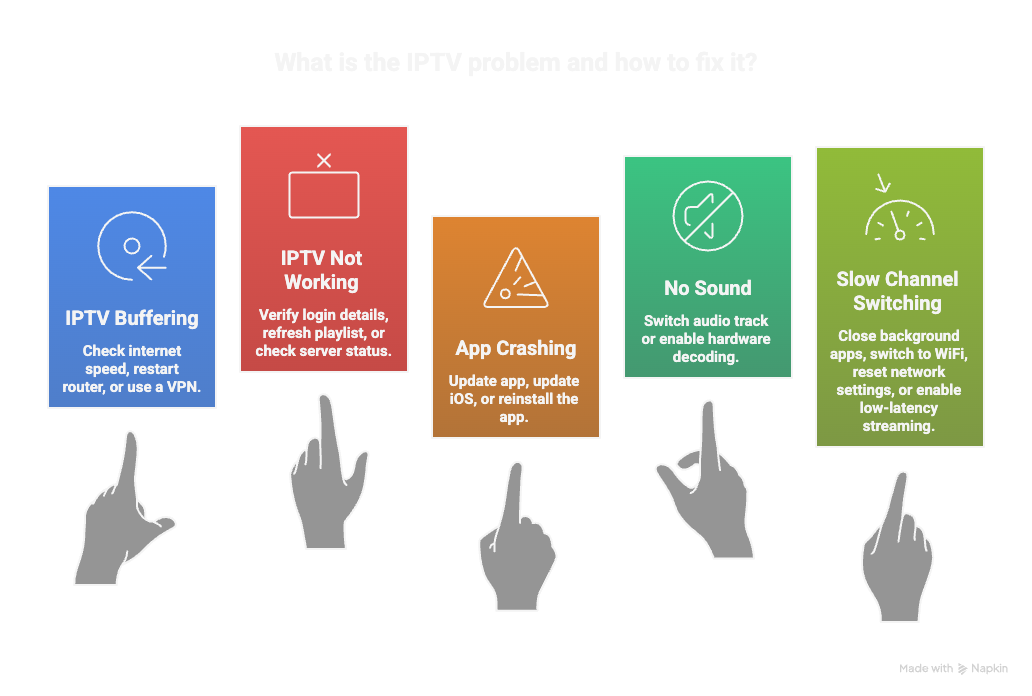
Here are the most common IPTV iPhone issues, and simple ways to solve them.
IPTV Buffering on iPhone
Buffering is the number one complaint in IPTV streaming.
If your live TV freezes every few seconds, the issue is usually one of three things:
- Slow internet speed
- ISP throttling
- Server overload from your IPTV provider
First, test your internet speed. For smooth HD streaming, you need at least 10–15 Mbps. For 4K IPTV streaming, even more.
If your speed is fine but buffering continues, try restarting your router.
Still buffering? A VPN may help reduce ISP throttling and improve IPTV speed on iPhone.
IPTV Not Working on iOS
If your IPTV app shows “playlist failed to load” or “login error,” don’t panic.
Most of the time, it’s one of these:
- Expired IPTV subscription
- Incorrect M3U playlist URL
- Wrong Xtream Codes login
- Server temporarily offline
Go back and double-check your login details.
Even one missing character can block access.
You can also try refreshing your M3U playlist inside the app settings.
IPTV App Crashing or Freezing
If your IPTV player keeps closing unexpectedly, it could be:
- Outdated app version
- Outdated iOS software
- Corrupted cache data
Go to the App Store and check for updates. Many IPTV apps release frequent updates with performance improvements and bug fixes.
If that doesn’t help, uninstall and reinstall the app.
Yes, it’s simple. But it works surprisingly often.
Channels Load But No Sound
This one confuses people.
If you see video but no audio, try switching the audio track inside the player settings. Some IPTV streams include multiple audio codecs, and your iPhone may default to the wrong one.
You can also enable hardware decoding in playback settings to improve compatibility.
Slow Channel Switching
If channels take forever to load, it might not be your iPhone.
Sometimes, IPTV server response time affects stream loading speed.
Still, you can try:
- Closing background apps
- Switching from mobile data to WiFi
- Resetting network settings on iPhone
- Enabling low-latency streaming options
Is IPTV Legal and Safe on iPhone?

Now let’s talk about the question people whisper instead of asking directly.
Is IPTV legal on iPhone?
The short answer? It depends.
IPTV technology itself is completely legal. Your iPhone is simply streaming video over the internet using standard protocols like HLS. That’s no different from Netflix, YouTube, or any other live TV streaming platform.
The real difference is the IPTV service provider you choose.
There are legal IPTV services that have proper broadcasting rights. And then there are unverified IPTV providers that may not hold official licenses for certain content.
Your iPhone doesn’t decide what’s legal. The service does.
That’s why choosing a trusted IPTV provider matters more than the IPTV player app itself.
Can IPTV Be Detected on iPhone?
Technically, your internet provider can see that you’re streaming data.
They usually cannot see exactly what content you’re watching if the stream is encrypted.
That’s why privacy-focused users often combine IPTV apps with VPN services for safer streaming on iOS devices.
How to Improve IPTV Streaming Quality on Your iPhone
Real Example: My First Time Watching IPTV on My iPhone
The first time I tried IPTV on my iPhone, I honestly expected a mess.
Hidden settings. Strange errors. Technical headaches.
It wasn’t like that at all.
I downloaded an IPTV player from the App Store — IPTV Smarters Lite. Installed it in less than a minute.
Then I copied my Xtream Codes login details. Pasted them in.
Done.
Within about 30 seconds, the app loaded my live TV channels, movies, and series.
Smooth.
But another time, I did run into an error.
It said: “Authorization Failed for above host.”
At first, I thought the IPTV app was broken.
It wasn’t.
I activated my VPN, tried logging in again… and it worked instantly.
That’s when I understood something important.
Failed login errors usually don’t depend on the app. They depend on the IPTV service or network restrictions you’re using.
Later, I tested IPTV on 5G mobile data.
I streamed a live football match just to see how stable IPTV on iPhone really was.
When I switched from WiFi to mobile data, I noticed one short buffering moment.
Maybe two seconds.
That was it.
Your iPhone is more than powerful enough for IPTV streaming.
Your internet speed. And your IPTV provider’s server stability.
Final Verdict: Should You Watch IPTV on Your iPhone?
So… can you watch IPTV on your iPhone?
Yes.
And not just “it works.”
It works surprisingly well.
Your iPhone is powerful enough to handle HD and even 4K IPTV streaming. Modern iOS devices are optimized for video playback, HLS streaming, and media player compatibility.
With the right IPTV app from the App Store, your phone becomes a portable live TV screen.
Not a backup device.
A real mobile TV solution.
If you travel a lot, move between rooms, or just don’t want to turn on the main TV, IPTV on iPhone makes sense.
You can watch live TV anywhere. Stream sports on the go. Catch up on movies during a break.
But here’s the honest part.
Your experience depends more on your IPTV provider and internet speed than on the app itself.
Choose a stable service. Keep your IPTV player updated. Use strong WiFi or fast 5G.
Do that, and your IPTV iOS streaming experience will feel smooth, fast, and reliable.
Is it a full replacement for cable?
For many people… yes.
Frequently Asked Questions About IPTV on iPhone
Can I watch IPTV on my iPhone without WiFi?
Yes, you can use 4G or 5G mobile data. However, IPTV streaming uses a lot of data. Watching live TV in HD can consume 1–3 GB per hour. For best stability and lower buffering, WiFi is recommended.
Do I need to jailbreak my iPhone for IPTV?
No. You do not need to jailbreak your iPhone to use IPTV apps. All recommended IPTV players are available directly from the App Store and work on standard iOS devices.
What is the best IPTV app for iPhone?
Popular options include IPTV Smarters, IPTVX, and Cloud Stream IPTV Player. The best IPTV app for iPhone depends on your preference — some focus on simplicity, others on advanced features like EPG, AirPlay, and playlist management.
Can I use AirPlay to watch IPTV on my TV?
Yes. Many IPTV iOS apps support AirPlay. You can mirror or stream your live TV from your iPhone directly to an Apple TV or compatible Smart TV.
Why does IPTV buffer on my iPhone?
Buffering usually happens because of slow internet speed, ISP throttling, weak WiFi signal, or IPTV server overload. Using 5GHz WiFi, closing background apps, or enabling hardware decoding can improve streaming performance.
Is IPTV safe to use on iPhone?
The IPTV apps themselves are safe when downloaded from the App Store. Safety depends more on the IPTV service provider you choose. Using a VPN can add privacy and reduce throttling.
Does IPTV drain iPhone battery fast?
Yes, live streaming uses more battery than normal browsing. Watching IPTV over mobile data or high brightness settings will drain battery faster. Using WiFi and lowering brightness helps.
Can I record IPTV on my iPhone?
Some IPTV apps support recording features if your provider allows it. However, recording may require additional storage space and depends on the app’s built-in capabilities.
How much internet speed do I need for IPTV on iPhone?
For smooth HD streaming, at least 10–15 Mbps is recommended. For 4K IPTV streaming, aim for 25 Mbps or more.
Legal Disclaimer: Always ensure to use IPTV services by local regulations and copyright laws. Respecting intellectual property rights is essential. Before subscribing, make sure to confirm the legitimacy of the service. We are not responsible for any of these subscriptions or any choices you make; this review is for informational purposes only.